Segmentation
Overview
Segmentation lets you build groups of users defined by their behavior over a period of time, such as cumulative playtime, total spend, or session count, and by global dimensions such as country, device, or build version. Once a segment is processed, it becomes a reusable audience that you can apply as a filter in other features or use to target users in experiments and configurations.
Segmentation is part of SegmentIQ and is aimed at live ops teams, product managers, and marketers who want to act on real player behavior without writing queries. You define an audience once, then reuse it across Distributions, Funnels, A/B testing, and Remote configs.
You find the feature under SegmentIQ > Segments.
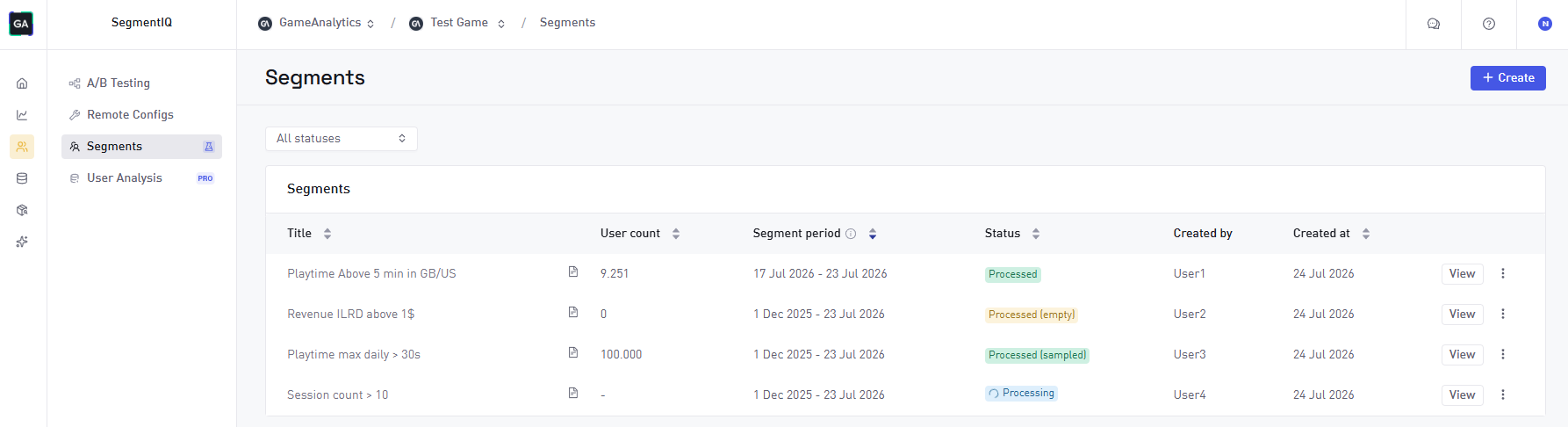
When you process a segment, GameAnalytics processes that definition against your project data at that point in time, producing a segment: a snapshot containing the list of matching users along with the definition used to generate it.
A segment can be used in the features listed above. It can also be duplicated to run the same definition again — for example, over a more recent period.
Create a segment
Select Create to open the segment creation page. It contains a prefilled condition, which can be deleted for any segment conditions and filters to be defined.
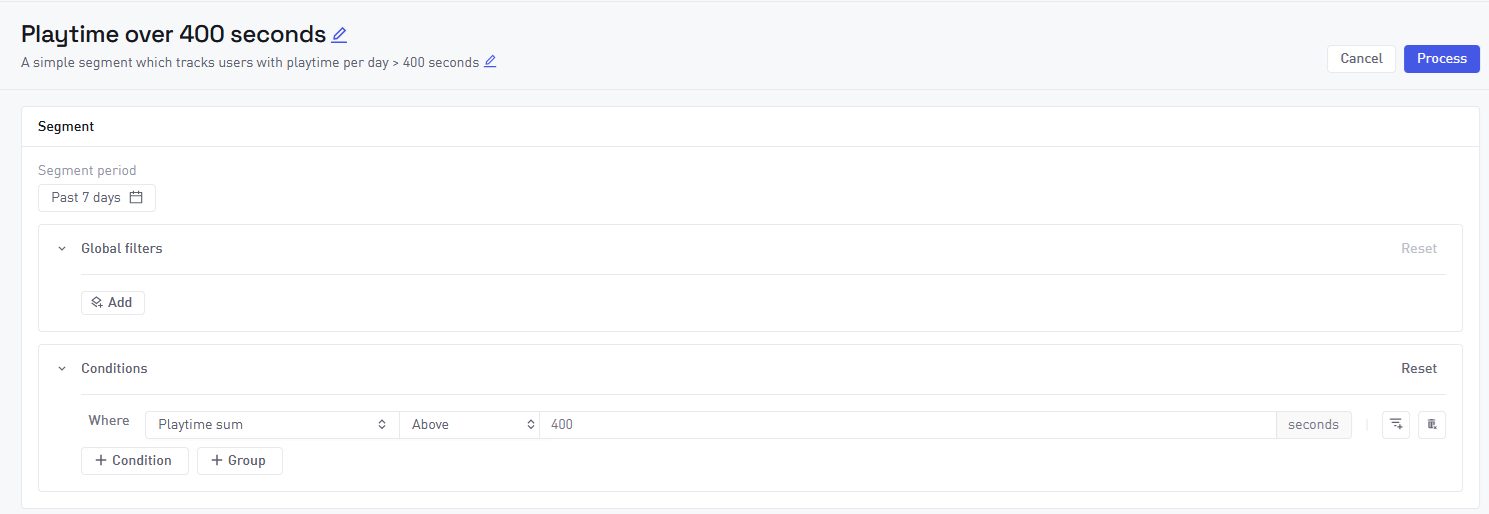
Name, description, and period
These controls sit at the top of the creation page and apply to the segment as a whole.
- Name. Free text. Defaults to "Untitled segment" if you leave it untouched.
- Description. Segment description.
- Segment period. The historical date range the segment is evaluated against. The default period is 7 days. When you create a segment by duplicating an existing one, the period keeps the same number of days as the source and ends yesterday.
Global filters
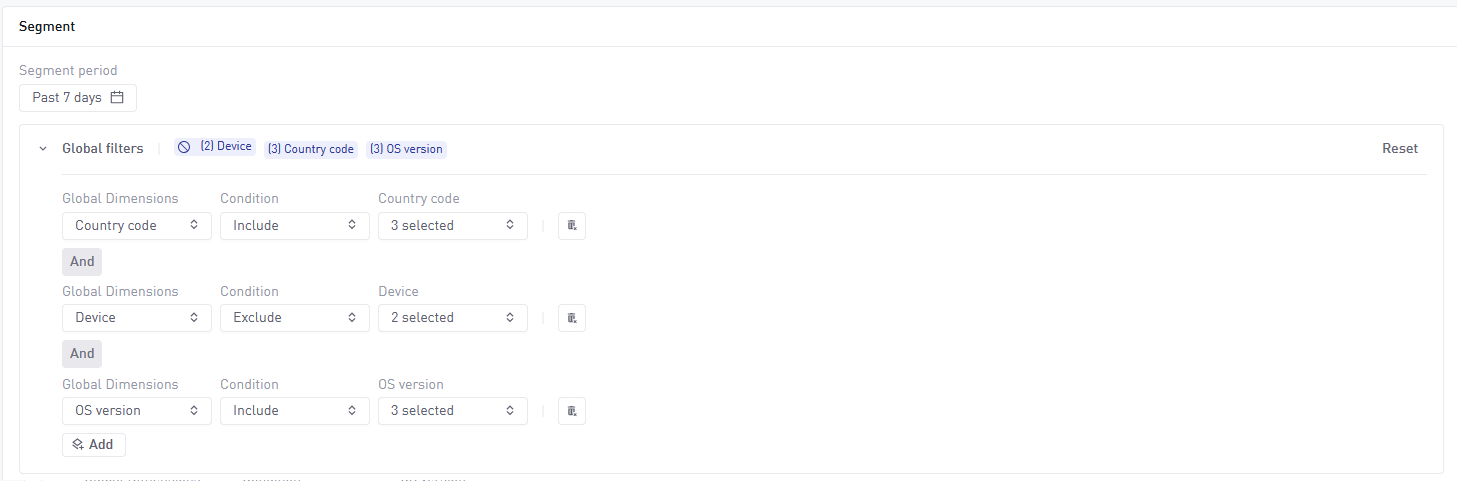
Global filters apply across the whole segment. Each filter row specifies a single global dimension that either includes or excludes a set of values. Global filter rows are combined with an AND.
Each row has an Include / Exclude toggle and a multi-value selector. The supported global dimensions are:
- Country code
- Device
- Platform
- Manufacturer
- Build (daily most played)
- First build
- OS version
- SDK version
- Engine version
- Acquisition Publisher
- Acquisition Campaign
- Acquisition Ad Group
- Acquisition Ad
- Acquisition Site
- Acquisition Keyword
Conditions
Conditions define behavioral rules over the segment period. Each condition consists of a metric, a value comparator, a value, and optionally one or more metric filters.
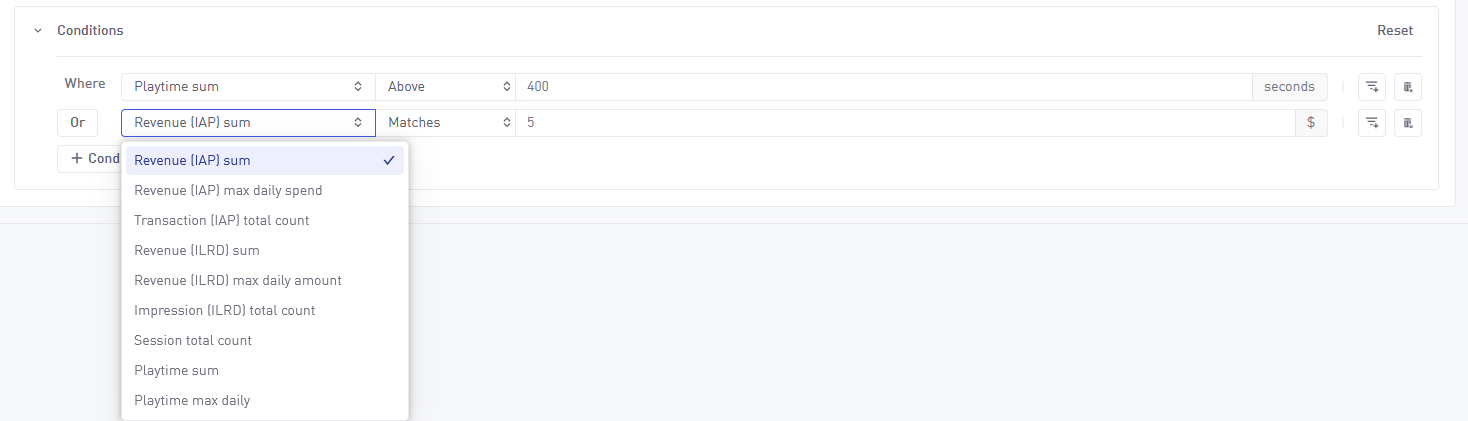
The available metrics are:
- Revenue (IAP) sum
- Revenue (IAP) max daily spend
- Transaction (IAP) total count
- Revenue (ILRD) sum
- Revenue (ILRD) max daily amount
- Impression (ILRD) total count
- Session total count
- Playtime sum
- Playtime max daily
The value comparators are Above, Below, and Matches. How you enter the value depends on the metric type:
| Metric type | Metrics |
|---|---|
| Revenue | Revenue (IAP) sum, Revenue (IAP) max daily spend, Revenue (ILRD) sum, Revenue (ILRD) max daily amount. Value will be dollar amount. |
| Time | Playtime sum, Playtime max daily. Value will be seconds |
| Count | Transaction (IAP) total count, Impression (ILRD) total count, Session total count. The value will be the count of impressions, sessions, etc... |
Each condition can have its own filters that restrict which user activity counts toward the metric. Metric filters use the same dimensions as global filters and the same Include / Exclude toggle and value selector.
Combine conditions with AND, OR, and groups
You can combine conditions with AND or OR logic. The first row in a group is fixed and shows "Where". The AND / OR control on the second row of a group sets the logic for that whole group, so switching it flips all the following rows to match. From the third row onward the control is inactive.
To mix AND and OR in the same segment, create a group. Groups are nested condition blocks with their own internal logic.

Nesting and row counts are capped:
| Limit | Value |
|---|---|
| Maximum nesting depth | 3 levels |
| Maximum rows or groups at the root | 10 |
| Maximum rows or groups inside a group | 5 |
| Maximum metric filters per condition | 10 |
When a limit is reached, the relevant Condition or Group button is disabled. At the third nesting level the Group button is hidden, because a fourth level is not allowed. The Group button is also hidden when there are no rows yet, since a group cannot be the only thing in the conditions area.
Process a segment
Select Process to update the segment. A segment can be processed if there is at least one global filter or condition defined.
Segment status and results
After you process a segment, the segment view shows a read-only summary of the definition (name, description, period shown as a date range with the number of calendar days in parentheses, global filters, and conditions) along with the current processing status and the result count. The definition is read-only here, so the condition selectors are disabled and cannot be edited.
A segment can be in one of these states. The status shows as a colored pill in both the segment view and the segment list.
| Status | Color | Meaning |
|---|---|---|
| Processing | Blue | The segment is currently being computed. This normally takes a few seconds. |
| Processed | Green | The segment finished and fewer than 100,000 users matched, so no sampling was applied. The exact user count shows next to the segment title. This is the primary result: the number of users in your project that match the definition over the chosen period. |
| Processed (sampled) | Green | The segment finished, but more than 100,000 users matched the conditions. The segment contains a sampled result (~100.000). The estimated total user count matched can be seen by viewing a processed sampled segment. |
| Processed (empty) | Yellow | The segment finished but zero users matched, and a notification reads "Segment empty. No users were found in the period for the defined filters and conditions." This usually means the conditions are too narrow or the period is too short. |
| Error | Red | Processing failed, and a notification reads "Segment error. An error occurred while processing the segment. It's possible to see the error that happened by either hovering over the "Error" status, or by viewing the processed segment. |
Manage your segments
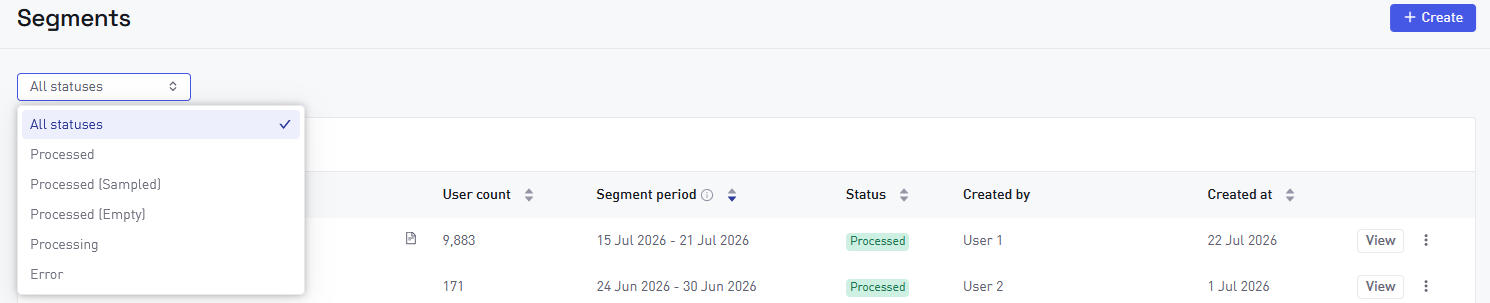
The segment list shows every segment in the project, with columns for User count, Created by, Created at, and Segment period. Use the status dropdown at the top to filter the list by status.
View a segment
Select View on any row to open the read-only segment view, regardless of the segment's status. Segment definition is displayed when viewing a processed segment.
It's possible to view the description of a processed segment, by select the icon next to User Count, while viewing the list of segments.

Duplicate and archive
Each segment row has an options menu with two actions.
- Duplicate. Copies the full definition into a new draft on the segment creation page. The new segment will use the same amount of days, but adjusted for the most recent data available. For example, duplicating a 7 day segment processed two months ago will produce a new draft covering the last 7 days ending yesterday.
- Archive. Archiving a segment will permanently hide it from the active list (not count towards active segments). A segment being actively processed cannot be archived. A segment used in A/B Testing or Remote Configs will continue to work even when it's archived.

Apply a segment in other features
Once a segment is processed and has at least one user, you can apply it in other features. Only segments with a Processed or Processed (sampled) status and a non-zero user count appear in the selectors.
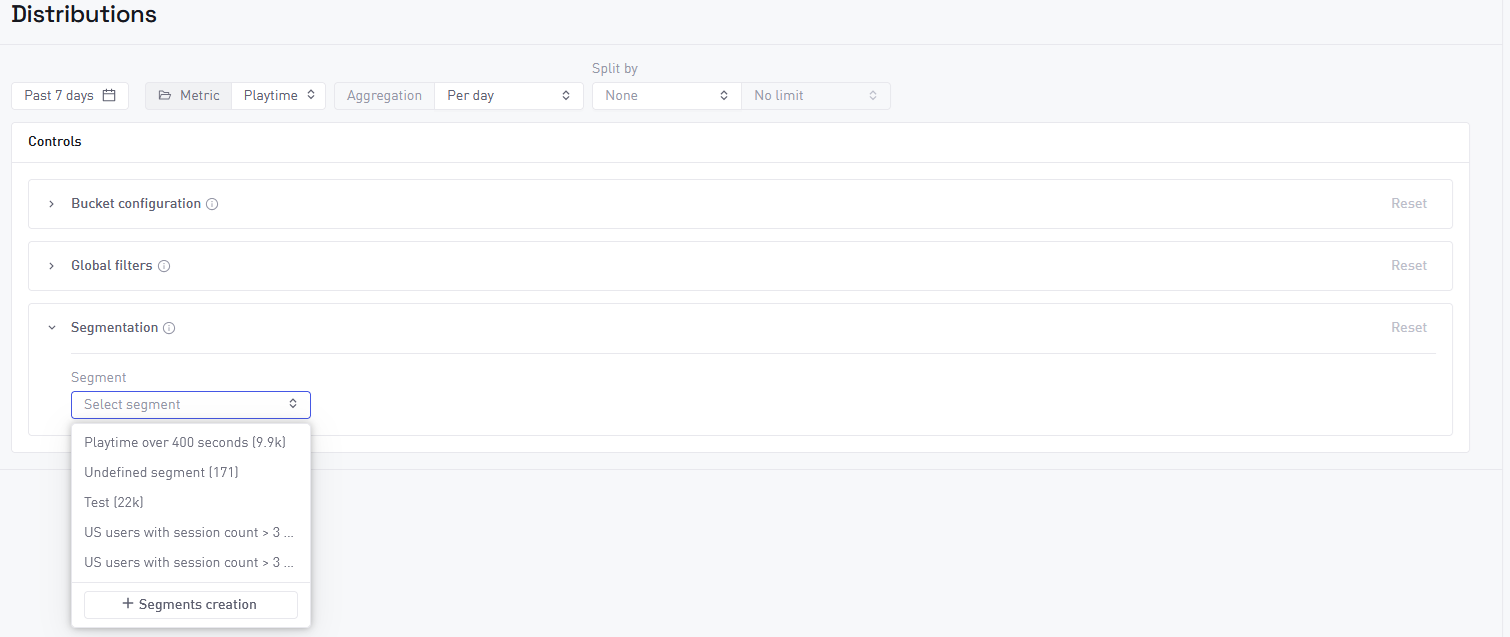
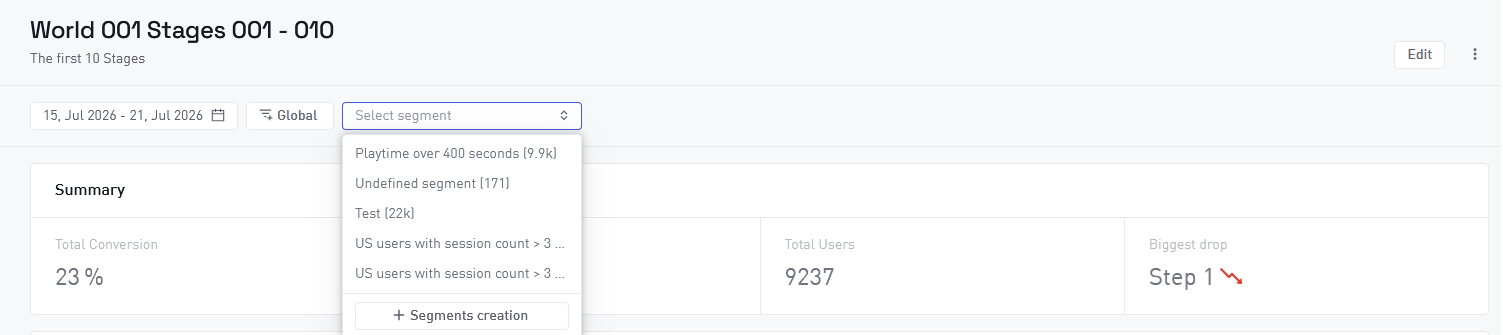
Each of these features exposes a Filter by segment dropdown to select an existing processed segment. It is also possible to jump straight to segment creation to create a new one using the Create segment button.
Distributions
In Distributions it is possible to choose a segment to see the results related to only the segmented users.
Funnels
In Funnels, you can apply a segment only while viewing a saved funnel. You cannot process a segment as part of a funnel definition.
A/B testing and Remote configs
In both A/B testing and Remote configs, the User targeting control chooses between either Criteria (filters) or a segment. In A/B testing, the enrollment rate control still applies when you target by segment.

Limits
| Limit | Value |
|---|---|
| Active segments per project | 20 |
| Maximum nesting depth | 3 levels |
| Maximum rows or groups at the root | 10 |
| Maximum rows or groups inside a group | 5 |
| Maximum metric filters per condition | 10 |
| Sampling cap on matching users | 100,000 |
If you reach the maximum amount of active segments, the solution is to archive some of them, as these do not count towards the active segments limit.