Event Collection Settings
GameAnalytics supports several ways to control how and when events are collected and sent. This is especially useful for managing data volume, handling privacy concerns, blocking unwanted or low-quality data, or temporarily disabling analytics features.
Available event collection options
You can choose between the following from each game’s Settings page:
| Collect all events | All events are collected as normal. This is the default setting. |
| Collect session events only | Limits data collection to session-level events only. All other types of events are excluded. |
| Disable event collection | Completely stops all event collection for the game. This results in the loss of all analytics data, and this cannot be recovered. |
| Filter event collection | Collects all events except those that match the filters you define, such as a specific build, SDK version, or event type. Use it to block unwanted or low-quality data while keeping everything else. |
Additionally, when data collection is limited or disabled:
- All remote configs are disabled and revert to default values.
- A/B tests are disabled.
When data collection is limited or disabled, the events cannot be recovered.
How to change the event collection setting
- Go to Game Settings → General from the game’s home screen.
- Scroll to the bottom of the page to the Danger Zone section.
- Choose the desired event collection setting.
- If you choose Filter event collection, set up your filters (see Filter event collection below), then save your changes.
Only users with Organization Owner or Primary Owner roles can make changes.
Filter event collection
Filter event collection lets you block individual events instead of turning collection on or off for the whole game. You define one or more filters, and any event that matches a filter is dropped when it is received. Every event that does not match keeps flowing as normal.
This is useful when you want to:
- Drop bad or malformed data from an outdated SDK or a build with a broken integration.
- Stay under event cardinality limits by blocking noisy builds or event types.
- Stop collecting a specific event type for privacy or compliance reasons, without losing the rest of your data.
Because the game keeps collecting every event that does not match a filter, features that rely on event data, such as Remote Configs and A/B Tests, continue to work. This is different from Collect session events only and Disable event collection, which switch those features off.
How filters work
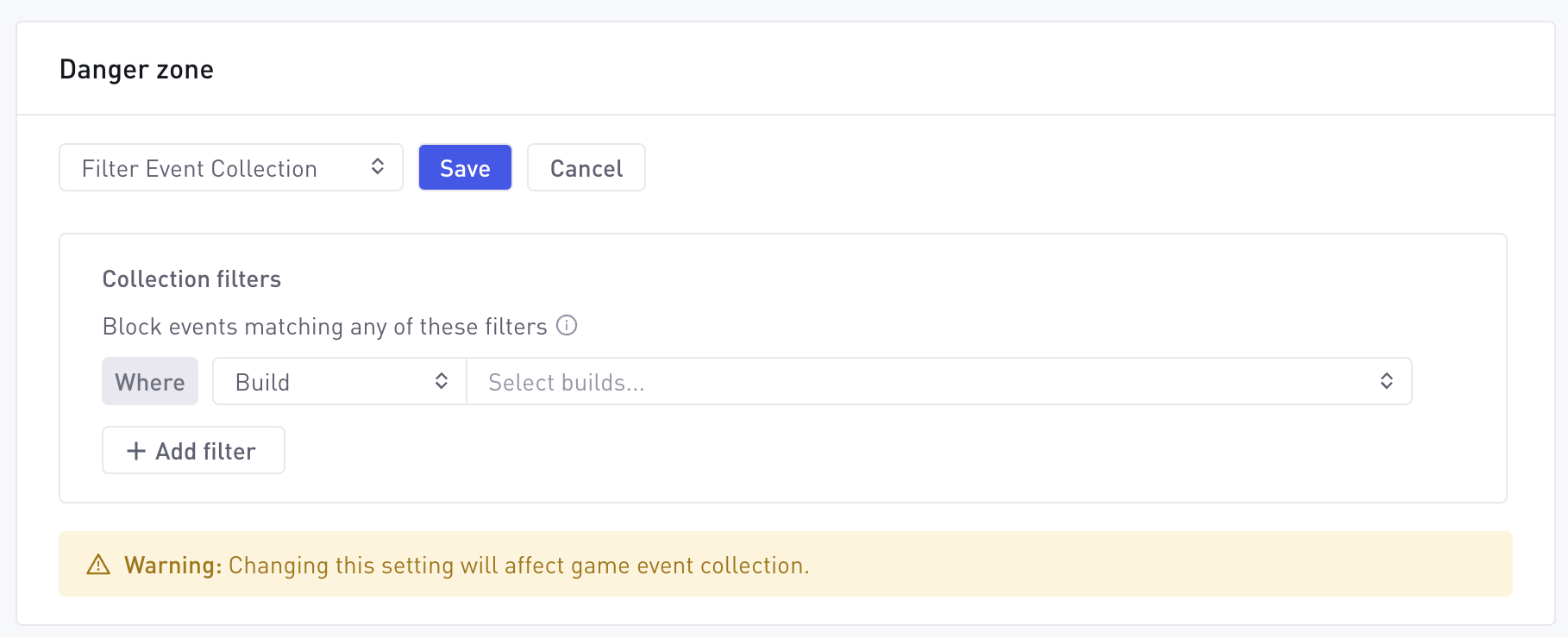
When you select Filter Event Collection, a Collection filters panel appears under the heading Block events matching any of these filters. Each row is one filter, and an event is blocked if it matches any of them. The first row is labeled Where, and each additional row is joined with Or. You can add up to four filters for a game.
Each filter targets one of the following:
| Filter | Description |
|---|---|
| Build | Blocks events from one or more app builds, chosen from the game’s build list. |
| SDK version | Blocks events from one or more SDK versions, chosen from the versions seen for the game. |
| Event category | Blocks a specific event category, with the option to narrow it down to a specific event dimension. |
For each filter you can enter several values. Separate values with commas, and use an asterisk (*) as an explicit wildcard, for example Stage_* to match any value that starts with Stage_. Matching is case sensitive, so World_001 and world_001 are treated as different values.
Use + Add filter to add a row, and the delete icon to remove one. When your filters are ready, select Save.
Filtering by event type
When you add an Event category filter, you first select the category, then optionally narrow it down by one of that category’s dimensions. The event must match both the category and the dimension condition you set.
The available event categories are Ads, Business, Design, Error, Progression, Resource, Impression, and User.
Design, Progression, and Resource events can be narrowed further using the same dimensions you use in the Explore tool:
| Event category | Dimensions you can filter on |
|---|---|
| Design | Event ID parts 01 to 05 |
| Progression | Status, Progression 01 to 03 |
| Resource | Flow type, Item type, Item ID, Virtual currency |
Blocked events are dropped when they are received and cannot be recovered later. Set up filters only once you are sure you do not need the matching data.
Example
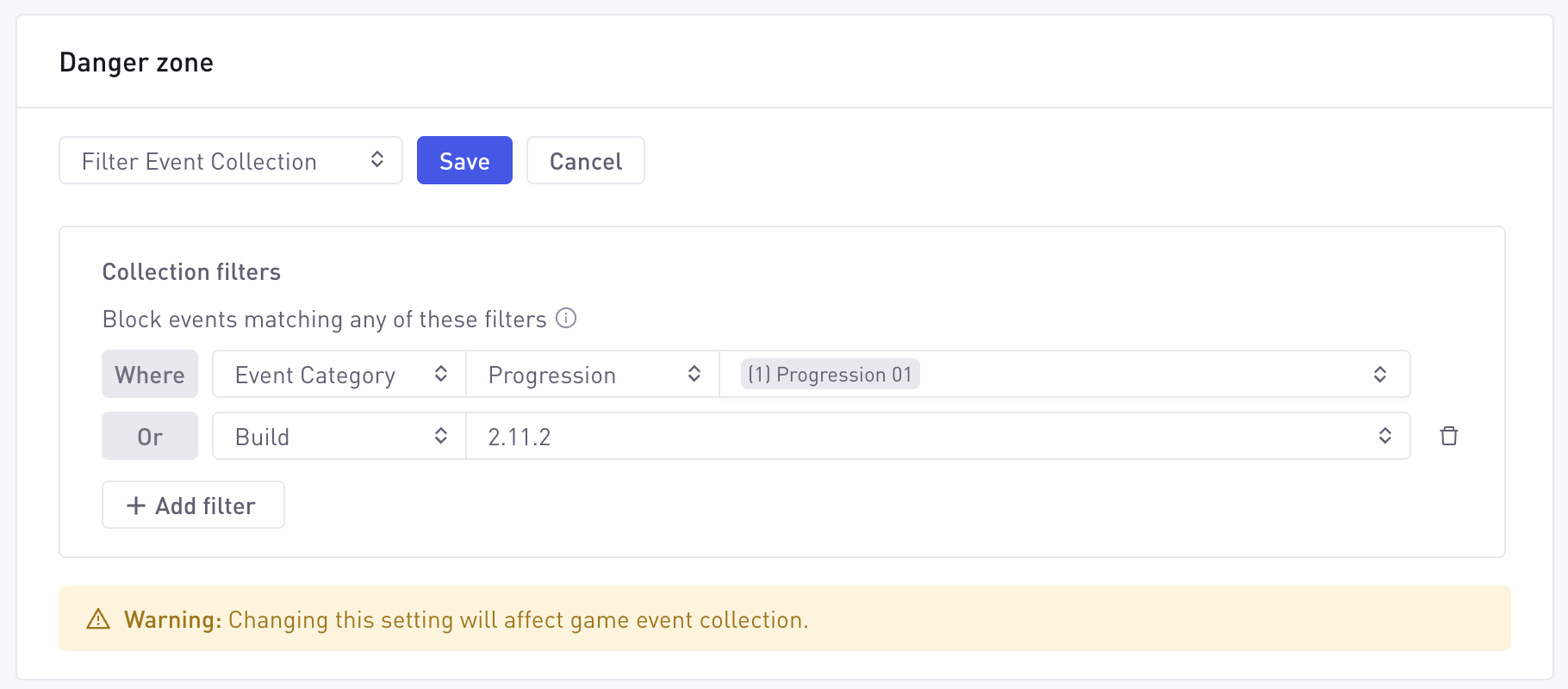
To stop collecting the progression events for one broken level, add an Event filter, set the category to Progression, and set Progression 01 to World_001. Only the matching progression events are blocked, while every other event, including other progression events, keeps flowing.
To also drop everything coming from an old build, add a second Build filter set to 2.11.2. An event is now blocked if it is a World_001 progression event, or if it comes from build 2.11.2.
In addition to these dashboard settings, you can enable or disable tracking programmatically using the GameAnalytics SDKs.