GameAnalytics MCP Server
The GameAnalytics MCP server connects AI assistants that support the Model Context Protocol (MCP), such as Claude, Cursor, and Codex, to your GameAnalytics data. You ask questions about your game metrics in plain language and get data-driven answers without leaving your preferred workflow.
GameAnalytics hosts the server at https://mcp.gameanalytics.com. You add that URL to your AI tool and sign in with your GameAnalytics account.
Concepts and context
Before you begin, it is helpful to understand the core technology powering this integration.
Model Context Protocol (MCP)
MCP is a standard that enables AI models to interact with external tools and APIs. In this context, the GameAnalytics MCP server acts as a "universal translator," allowing your AI assistant to "speak" directly to the GameAnalytics API. Instead of manually filtering dates and dimensions, the server translates your natural language request into precise API calls, retrieves the JSON data, and summarizes the findings for you.
Use cases by role
We support distinct workflows for different team members:
| Role | Benefit | Example query |
|---|---|---|
| Product Manager | Quick clarity on KPIs | "What was the D7 retention for our iOS build last week?" |
| Developer | Data validation in IDE | "Verify if the new custom event 'Level_5_Complete' is appearing in the metrics." |
| Analyst | Complex query drafting | "Compare ARPU between users from the USA versus users from Germany." |
Prerequisites
To use the GameAnalytics MCP server, you need:
- A GameAnalytics account with active game data.
- An Organization with MCP Access or PipelineIQ Pro. To get either, go to the GameAnalytics MCP server page and select Get access.
- An AI tool that supports remote MCP servers with OAuth sign-in, such as Claude, Claude Code, Codex, or Cursor.
Connect your AI tool
Every tool connects to the same server endpoint:
https://mcp.gameanalytics.com
Find your tool below. After you add the server, your tool opens a GameAnalytics sign-in page in your browser. See Sign in and allow access for what happens next.
Claude
This covers Claude in the browser and the Claude desktop app.
- Open Settings > Connectors.
- Select Add custom connector.
- Enter
GameAnalyticsas the name andhttps://mcp.gameanalytics.comas the URL. - Select Add, then select Connect to sign in.
Claude Code
Add the server:
claude mcp add --transport http gameanalytics https://mcp.gameanalytics.com
Then run the /mcp command inside Claude Code, select gameanalytics, and choose to authenticate.
Codex
Add the server:
codex mcp add gameanalytics --url https://mcp.gameanalytics.com
Then sign in:
codex mcp login gameanalytics
Cursor
Add the server to your mcp.json file. Use ~/.cursor/mcp.json for all projects, or .cursor/mcp.json inside a project for that project only.
{
  "mcpServers": {
    "GameAnalytics": {
      "url": "https://mcp.gameanalytics.com"
    }
  }
}
Cursor detects that the server requires sign-in and prompts you to connect.
Sign in and allow access
The first time your AI tool connects, it sends you through a short sign-in flow in your browser:
- Sign in with your GameAnalytics account. If you are already signed in to GameAnalytics in that browser, this step is skipped.
- Review the consent screen. It names the AI tool that is asking for access and the site you return to afterwards.
- Select Allow access. Your browser returns you to your AI tool, which is now connected.
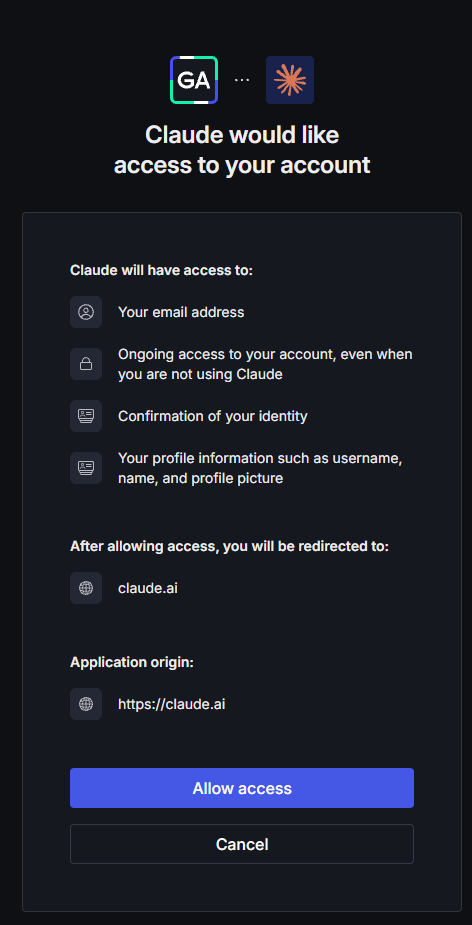
Select Cancel instead if you do not want to connect. The AI tool does not get access.
Once connected, the server works with the same data you can see in GameAnalytics: every Organization, Studio, and Game your account has access to. Access is read-only. The server cannot change your game data or settings.
To disconnect, remove the GameAnalytics server or connector in your AI tool.
Available tools
Your AI assistant chooses which tools to call based on your question. You do not need to call them yourself, but knowing what they do helps you phrase questions the server can answer.
| Tool | What it does |
|---|---|
get_games | Lists the games with activity data in a date range. |
get_studios | Lists the studios with game activity in a date range. |
get_dimensions | Lists the dimensions you can filter and group by, such as country_code, platform, and is_paying. |
get_dimension_values | Lists the possible values of one dimension in a date range. |
get_interval | Returns the earliest and latest dates with available data. |
get_supported_metrics | Lists the metrics you can query, with a description of each. |
query_metric | Queries a metric over a date range, optionally grouped or filtered by dimensions. Covers revenue, ad revenue, engagement, and ad monetization metrics. |
query_retention | Queries retention for a single game, such as D1, D7, or D30 retention. |
query_cumulative | Queries cumulative revenue or playtime per user for a single game, by days since install. |
Usage examples
Once connected, you can open your AI client and start chatting with your data.
Example: Analyzing revenue decline
You can ask complex, multi-part questions to diagnose issues.
User query
Fetch the daily revenue for 'Galaxy Quest' for the last 30 days. Is there a specific country driving the decline?
AI response (summary)
I have analyzed the daily revenue for 'Galaxy Quest' over the last 30 days (2025-11-08 to 2025-12-08). Summary: Yes, Germany (DE) appears to be the primary driver of the revenue decline.
Findings:
- Top Markets: Revenue is driven by Germany (~81%) and Denmark (~19%).
- Germany Trend: Shows a noticeable downward trend from ~$2,407 to ~$1,600.
- Denmark Trend: Remains relatively stable around ~$548.
Since Germany accounts for the vast majority of revenue, its decline has a direct impact on overall metrics.
Best practices
When using LLMs, ensure you understand how your AI provider handles data. While the GameAnalytics MCP server fetches data securely from our API, the conversation history is processed by the AI client (e.g., Anthropic, OpenAI).
For the best results, include specific date ranges and metric names in your prompt. For example, instead of asking "How is the game doing?", ask "What is the daily active user count for the last 7 days?"
Troubleshooting
| Problem | Solution |
|---|---|
Tool calls fail with a 403 error. | Your Organization does not have MCP Access or PipelineIQ Pro. Get access from the GameAnalytics MCP server page. |
| Tool calls fail with an authentication error. | Your sign-in has expired or was revoked. Disconnect and reconnect the server in your AI tool to sign in again. |
| Your AI tool does not open a sign-in page. | Check that the tool supports remote MCP servers with OAuth, and that the URL is exactly https://mcp.gameanalytics.com. |