Advanced Usage
This companion page dives deeper into the capabilities of Realtime for advanced users such as analysts and LiveOps engineers.
Event Filtering Syntax
When using the Live Events filters, you can enter exact values or patterns:
- Partial matches:: all filter inputs are treated as partial matches, entering
resourcewill match any value containing that text (equivalent to*resource*) - Wildcards: use
*to match variable segments, wildcards can appear at the beginning, end or in the middle of a pattern (e.g.prefix*postfix). - Event ID patterns: when filtering by
event_id, you can combine multiple wildcards within the same pattern (e.g.start:level_*:*_action). - Multiple values: separate multiple patterns with commas (e.g.
resource, business).
Filters are case‑insensitive. Invalid patterns return no results.
Customizing the Event View
When the Raw JSON toggle is off, the Live Events tab shows events in a table. Expand any row to open its event card, where each property appears as a key-value pair. The options below help you tailor this view for faster debugging.
Syntax Highlighting
Event data is color-coded so individual fields are easier to scan:
- Values appear in blue (for example
"android"or"offline"). - Keys and punctuation use the default, muted text color.
Highlighting applies in both the Raw JSON view and the expanded event card, so the visual language stays the same as you switch between them.
Choosing Which Properties to Show
In table view, the event card header includes an All properties button. It is hidden in Raw JSON mode, where the full payload is always shown. Click it to open the Event properties modal, where you decide which properties appear in the event card and in what order.
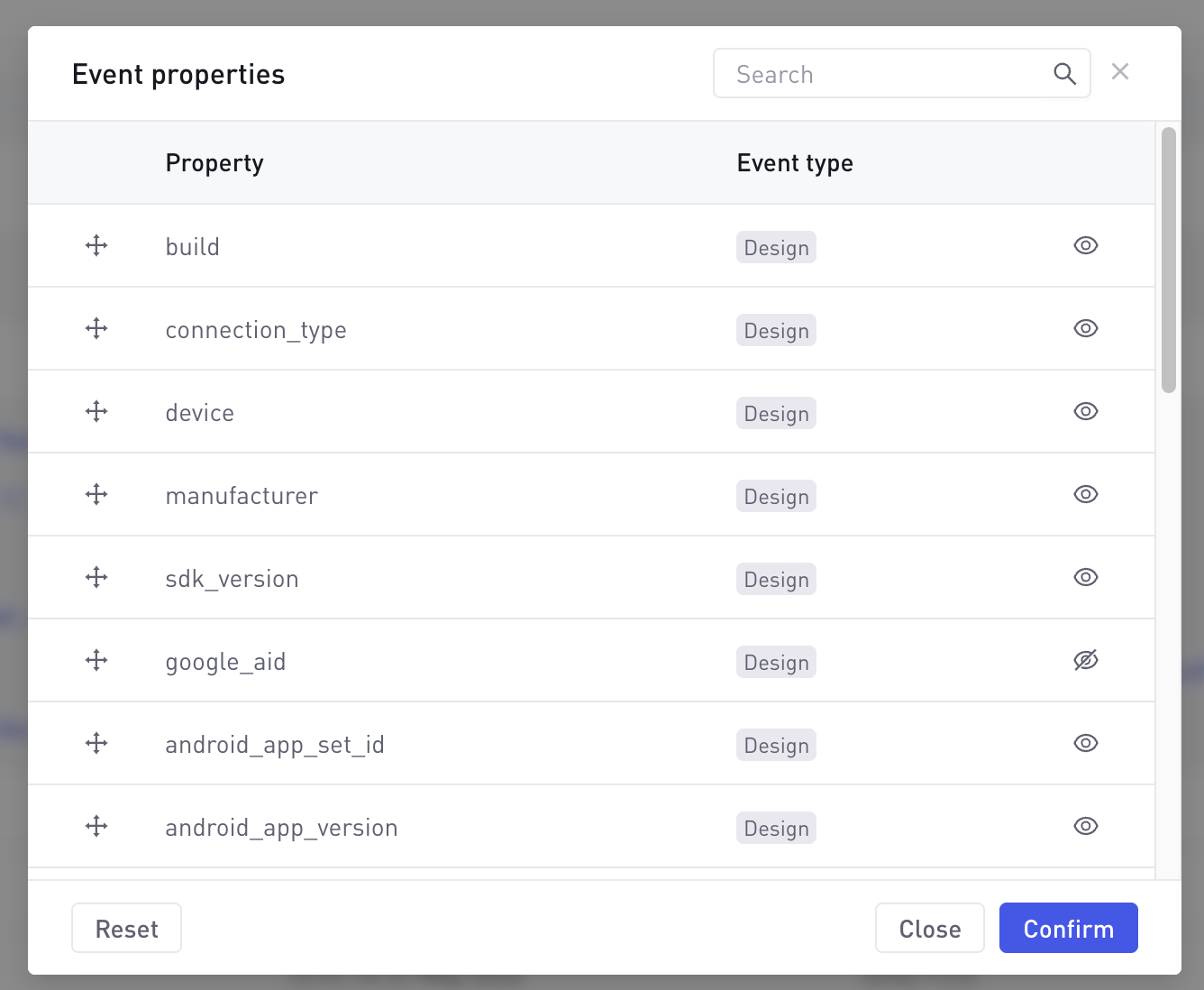
In the modal you can:
- Search for a property by name to filter the list.
- Reorder properties by dragging the handle on the left of each row. Properties at the top of the list appear first in the event card.
- Show or hide a property with the eye icon. An open eye means the property is visible, and a slashed eye means it is hidden.
Each property is tagged with the event type it belongs to (for example Design or Business). When a property appears in more than one event type, the tag shows the first type with a +N badge.
Click Confirm to apply your changes, or Close (or the X) to discard them. Reset restores the default layout, making every property visible again in alphabetical order.
A few details worth knowing:
- Properties are independent of event type. If you hide a property, it stays hidden for every event that contains it. Events that do not contain that property are unaffected and still show their own fields.
- The event card lays out visible properties in a four-column grid, following the order you set.
- Before you customize anything, properties appear in alphabetical order.
- Hidden properties do not appear in the event card at all. If you hide every property, the card shows an empty-state message.
Your visibility and ordering choices are saved to your account through your user preferences, so they carry over to the Live Events tab for any of your games.
Copying Field Values
Beyond copying a whole event, you can copy an individual value straight from the event card. Hover a property and click the copy icon that appears:
- String values are copied without the surrounding quotes.
- Numbers are copied as plain numbers.
- Objects and arrays are copied as formatted JSON.
The icon briefly confirms the copy, so you know the value is on your clipboard.
Interpreting Comparison Charts
The Last 7 days vs previous 7 days view overlays two date ranges:
- The primary line/bars represent the last 7 days (ending now).
- The secondary series shows the previous 7 days (8–14 days ago).
Use this to gauge week‑over‑week growth. Positive deltas indicate improving engagement, while negative deltas may signal issues.
Best Practices & Tips
- Use pause during debugging: pausing the event stream while inspecting payloads prevents new events from pushing older entries off the list.
- Upgrade promptly: staying on the latest SDK version ensures accurate metrics and unlocks new features.
- Complement with Explore: for deeper analysis of time windows longer than 15 days, switch to the Explore tool or Dashboards.
- Monitor adoption after releases: after releasing a new game version, check the SDK adoption chart to verify players migrate to the updated SDK.
Hide properties you rarely inspect (for example google_aid) and move the fields you debug most to the top of the Event properties list. A focused event card makes it much faster to spot the values you care about.